Stuff like productivity doesn’t just happen because you got some cool new app. The real wins come when you build a whole system where everything works together. Think about planning projects, juggling tasks, talking to your team, keeping files straight, grabbing ideas, automating the boring bits, and saving what you know. Each piece helps you get more done easier.
Desktop apps can seriously change how you work, no matter what you do. Instead of switching between apps or doing things manually, you build a smoother operation.This means fewer distractions, better teamwork, and organized work. We’ll look at the best apps for different parts of your workflow, showing how they connect to make things faster and smarter.
Understanding the Modern Desktop Workflow
Getting stuff done these days isn’t just about firing up Word. Most people bounce between a bunch of different apps all day, each for its own thing.
Planning
You really need a clear plan for every productive day. Stuff like task managers and project planners help you sort out what’s important, when it’s due, and makes sure you don’t miss anything crucial.
Communication
Then there’s talking to people. Communication Tools are very necessary Whether it’s your colleagues or meeting with clients. Chat, video calls, team platforms – they keep you connected no matter where you are.
Recording
Lots of meetings, training sessions, or demos mean you’ll probably need to record your screen. These tools let you grab stuff that’s hard to explain with just words.
File Management
Finding files and Documents fastly saves tons of time every month. A good file search and management tool helps you not to get lost in endless folders and saves your time.
Automation
Then there’s automating stuff. Most of our daily tasks involve repetitive clicks and typing. All those little clicks and typing you do over and over? Automation software does that, letting you focus on more important work.
Knowledge Management
All those ideas, meeting notes, research and documentation accumulate rapidly. Knowledge management tools let you store stuff so you can find it.
When all these parts work together, they make a kind of productivity system. It helps you and your team get more done.
Applications for Every Stage of Your Workflow
1. Planning
Notion
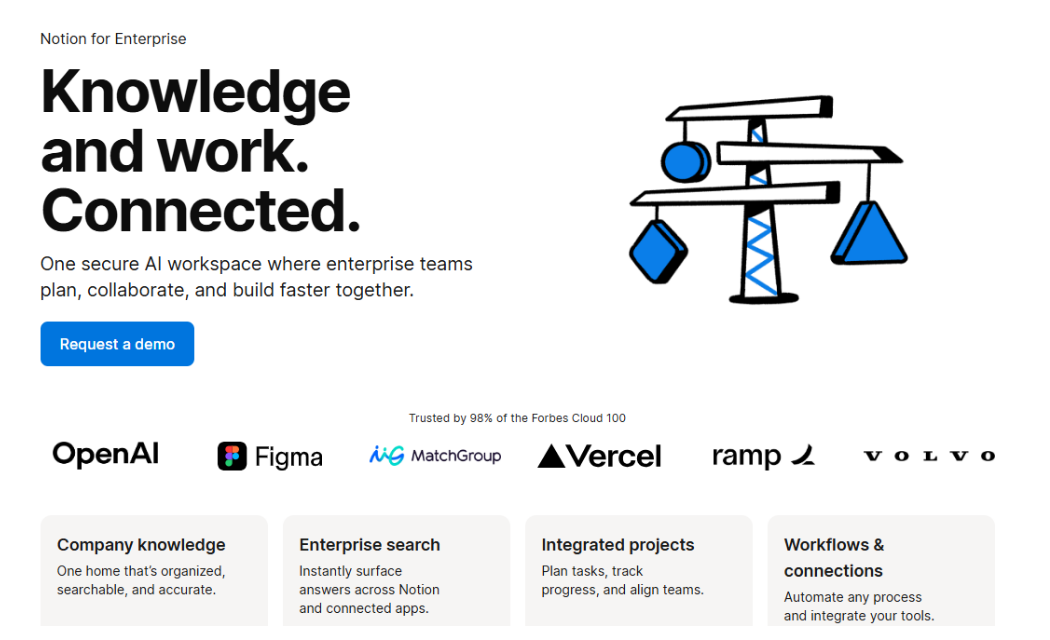
It’s Notion, an all-in-one workspace. It’s for notes, projects, docs, and working together. You can set up your space how you want.
What Makes It Different
What’s different? Notion isn’t like other note apps; it has databases, linked pages,templates,calendars,collaborative editing and even Kanban boards. It’s all in one spot.
Our Testing Experience
When we tested it, Notion really shined for big projects with tons of tasks and sources. Its custom setup is great for personal and work stuff, though it takes a bit to get the hang of. It’s good for project managers, students, content creators, and teams handling docs.
Best For
- Project managers
- Students
- Content creators
- Teams managing documentation
Todoist
Todoist is a lightweight task management application focused on simplicity and speed. It helps users organize tasks, deadlines, recurring reminders, and priorities.
What Makes It Different
Its natural language input makes adding tasks incredibly fast. Users can type phrases like “Submit report tomorrow at 10 AM,” and Todoist automatically creates the reminder.
Our Testing Experience
We found Todoist great for day-to-day tasks. It opens fast, syncs everywhere, and doesn’t distract you. Great for busy folks, minimalists, and daily work.
Best For
- Personal productivity
- Daily task management
- Busy professionals
- Minimalists
2. Communication
Slack
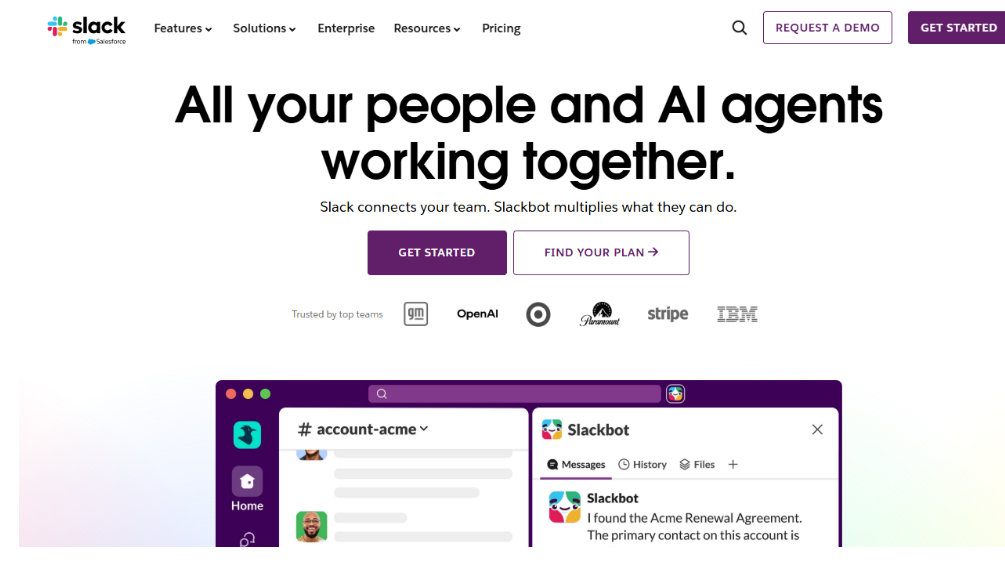
Slack is one of the world’s leading workplace communication platforms, replacing lengthy email chains with organized channels and direct messaging.
What Makes It Different
Its integration with hundreds of business applications—including Google Drive, GitHub, Trello, and Zoom—creates a centralized collaboration hub.
Our Testing Experience
Slack significantly improved communication efficiency during team projects by reducing unnecessary meetings and keeping discussions organized by topic.
Best For
- Remote teams
- Software development
- Business collaboration
- Customer support
Zoom
Zoom is a widely used video conferencing platform for meetings, webinars, interviews, and online collaboration.
What Makes It Different
Its high-quality video, screen sharing, recording features, breakout rooms, and reliable performance make it suitable for organizations of all sizes.
Our Testing Experience
Zoom delivered stable meeting quality even with larger groups, while screen sharing remained responsive throughout presentations.
Best For
- Remote meetings
- Online education
- Sales presentations
- Client consultations
3. Recording
Eassiy Screen Recorder Ultimate
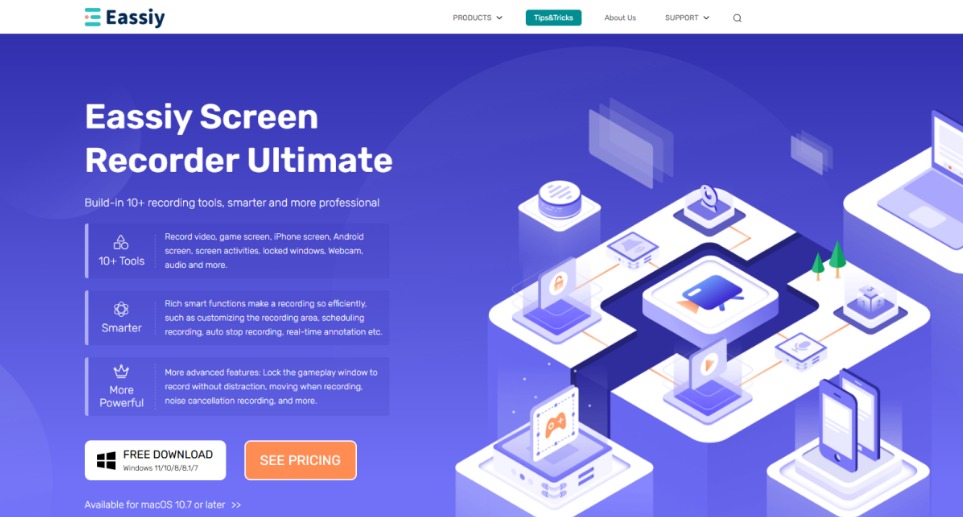
Eassiy Screen Recorder Ultimate is a comprehensive screen recording solution designed for professionals, educators, gamers, customer support teams, and content creators. It enables users to capture their entire screen, selected windows, webcams, system audio, microphones, and gameplay with high-quality output. Beyond recording, it also includes screenshot tools, annotation features, scheduled recording, and basic editing capabilities, making it a versatile all-in-one recording solution.
What Makes It Different
Unlike many basic screen recorders, Eassiy Screen Recorder Ultimate combines multiple recording modes with an intuitive interface that is easy for beginners while still offering advanced controls for experienced users. Users can:
- Record full screen or custom regions
- Capture webcam and screen simultaneously
- Record iPhone or Android phone screen with computer
- Recording only the game footage ensures there are no interruptions from other visuals.
- Record system sound and microphone independently or together
- Schedule recordings automatically
- Add real-time annotations during recording
- Take scrolling and standard screenshots
- Export recordings in multiple formats with high-quality output
These features eliminate the need to switch between multiple recording applications, improving workflow efficiency.
Our Testing Experience
During testing, Eassiy Screen Recorder Ultimate performed consistently across various recording scenarios, including software tutorials, online meetings, and presentation recordings. The recording process was smooth, with clear audio synchronization and responsive controls. The annotation tools were especially useful for creating instructional content, while scheduled recording simplified capturing webinars without manual intervention.
The Eassiy software also remained user-friendly throughout testing, allowing recordings to start quickly without a complicated setup process. It also comes with many useful little tools, such as video converter, video compressor, video trimmer, file merger, media metadata editor, sound extractor, and sound booster.
Best For
- Tutorial creators
- Online educators
- Technical support teams
- Business presentations
- YouTubers
- Software demonstrations
- Meeting recording
OBS Studio
OBS Studio is a free, open-source recording and live streaming application widely used by gamers and professional streamers.
What Makes It Different
Its scene-based recording system and extensive customization options provide professional-level control over recording and streaming.
Our Testing Experience
OBS offers exceptional flexibility but requires more configuration than most commercial alternatives. Beginners may face a steeper learning curve.
Best For
- Live streaming
- Gaming
- Advanced users
- Professional broadcasting
4. File Management
Everything
Everything is an ultra-fast Windows file search utility that indexes file names for nearly instant search results.
What Makes It Different
Instead of slowly scanning folders each time, Everything builds an index that returns results almost immediately.
Our Testing Experience
Searching for documents that previously took minutes became nearly instantaneous, making it one of the biggest daily time-savers.
Best For
- Windows users
- Large file collections
- Office environments
OneCommander
OneCommander is a modern file manager that offers a more productive alternative to Windows File Explorer.
What Makes It Different
Features like dual-pane browsing, file previews, tagging, favorites, and advanced navigation improve file organization.
Our Testing Experience
Its clean interface and dual-pane layout simplified moving files between folders and organizing large projects.
Best For
- Power users
- Designers
- Developers
- Business professionals
5. Automation
Power Automate
Microsoft Power Automate enables users to automate repetitive workflows across Windows and cloud services.
What Makes It Different
It supports both desktop automation and cloud-based workflows without requiring advanced programming knowledge.
Our Testing Experience
Routine tasks such as file organization, email processing, and report generation became largely automated, reducing manual effort.
Best For
- Business users
- Office automation
- Microsoft ecosystem
AutoHotkey
AutoHotkey is a scripting language for creating keyboard shortcuts, macros, and desktop automation.
What Makes It Different
Nearly every keyboard or mouse action can be customized through scripts.
Our Testing Experience
After creating several custom shortcuts, repetitive actions such as inserting templates and launching applications became significantly faster.
Best For
- Advanced Windows users
- Developers
- Heavy keyboard users
6. Knowledge
Obsidian
Obsidian is a markdown-based knowledge management application that stores notes locally while connecting related ideas through backlinks.
What Makes It Different
Its graph view visualizes relationships between notes, making it easier to discover connections across large collections of information.
Our Testing Experience
Obsidian excelled at organizing research, meeting notes, and long-term projects. Linking related notes created a highly effective personal knowledge base that became more valuable over time.
Best For
- Researchers
- Writers
- Students
- Lifelong learners
How to Eliminate Repetitive Tasks
Stuff just eats up your day, you know? Like, all those little things you do over and over. Still, you can speed things up.
Automate Routine Processes
You can make computers do them. Need to rename files, open apps, sort email, or make reports? Tools like Power Automate or AutoHotkey can handle that.
Use a Clipboard Manager
Also, a clipboard manager. Instead of just holding one thing you copied, it holds lots. So you can grab text or links you use a bunch without having to copy them again and again. No more window switching, super handy.
Improve Search Efficiency
Searching for files can be a drag. Use a program like Everything. It finds files super fast. If you name folders and files the same way each time, it’s way easier.
Create Reusable Templates
And make templates. For stuff like meeting notes, emails you send a lot, project ideas, or bills. A program like Notion makes making these simple. It stops you from messing with the same formatting every time.
Building Your Own Daily Workflow
To illustrate how these applications can work together, consider the following daily workflow for a marketing specialist named Sarah.
Sarah starts her day. She checks what’s important in Todoist, then looks at campaign notes in Notion. She has a Zoom meeting with her team. During it, she uses Slack to pass files around and chat with people.
While they’re talking, she records a software demo with Eassiy Screen Recorder Ultimate. Notes on the screen show what is important, she adds. She saves the video with other files, using OneCommander. Everything helps her pull up related docs super fast when she needs them.
Power Automate puts downloaded reports in folders, automatically. AutoHotkey makes repetitive things faster, like dropping in email text or opening apps she uses a lot with custom keys.
After the day, Sarah records notes in Obsidian. She connects these new notes to older research. This growing collection of notes is super helpful for later, making it quicker to decide things and cutting down on doing the same work over.
When you mix tools for each part of the job, Sarah just spends less time digging around, clicking, and doing boring stuff. She gets to focus on the work that really matters.
FAQs
What are the most essential desktop applications for improving productivity?
A complete productivity setup includes tools for planning, communication, recording, file management, automation, and knowledge organization. Together, they help streamline daily tasks and improve work efficiency.
Why should I use dedicated screen recording software instead of built-in tools?
Dedicated software like Eassiy Screen Recorder Ultimate offers advanced features such as scheduled recording, webcam capture, annotations, and multiple recording modes for more professional results.
How can automation improve my daily workflow?
Automation reduces repetitive tasks like file organization, data entry, and launching applications, saving time and allowing you to focus on more important work.
Which application is best for managing personal knowledge?
Obsidian is an excellent choice for managing notes and research, thanks to its Markdown support, backlinking, and powerful knowledge graph.
How do these applications work together?
Each tool supports a different stage of your workflow—from planning and communication to recording, organizing, and automating—creating a smoother and more productive work experience.